Summary
Windows Hello for Business is an authentication technology that allows users to sign in to their Windows devices using biometric data, or a PIN, instead of a traditional password. It provides enhanced security through phish-resistant two-factor authentication, and built-in brute force protection.
Body
Overview
Windows Hello for Business allows users to sign in to Windows devices using a PIN or biometric authentication (facial recognition or fingerprint). This method provides enhanced security through phish‑resistant multifactor authentication and built‑in brute‑force protection.
Audience
Ithaca College students, faculty, and staff using Windows devices.
Instructions
Set Up Windows Hello
- Open Settings.
- Select Accounts.
- Choose Sign‑in options.
- Set up a PIN.
- Add Facial Recognition and/or Fingerprint if supported by your device.
- Follow the on‑screen prompts to complete biometric enrollment.
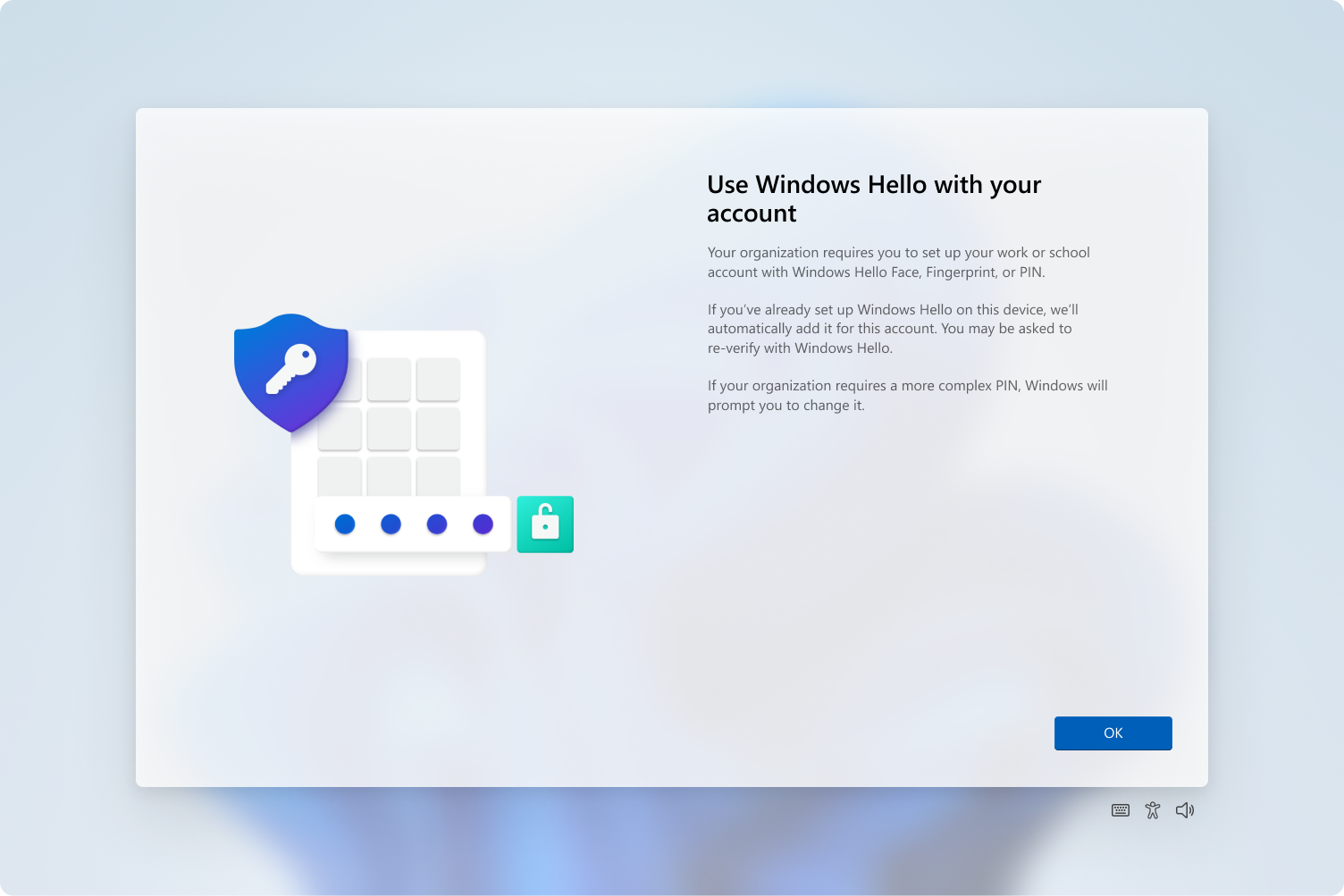
Use Windows Hello
- Sign in using your configured PIN, facial recognition, or fingerprint.
Security Information
Windows Hello for Business includes several protections that improve security over traditional passwords:
- Built‑in safeguards prevent brute‑force PIN guessing.
- The PIN and biometric data never leave the device.
- Attackers would need both the physical device and the PIN, making this approach a form of multifactor authentication.
- Asymmetric cryptographic keys stored in the device’s TPM prevent phishing, replay attacks, and server‑side credential compromises.
For additional details, see:
Why a PIN Is More Secure Than a Password – https://learn.microsoft.com/en-us/windows/security/identity-protection/hello-for-business/faq#why-a-pin-is-better-than-an-online-password
Benefits
Security
- Uses unique biometrics or a device‑specific PIN for stronger authentication.
- Eliminates password‑based phishing and reduces exposure to server breaches.
Speed
- Provides fast sign‑in using a glance, touch, or quick PIN entry.
- Enables shorter lock‑screen timeout settings with minimal impact on workflow.
Troubleshooting
- Ensure good lighting and a clean camera or fingerprint scanner during biometric sign‑in.
- If sign‑in issues occur, you may use your password as a fallback.
- If you forget your PIN, reset it from the lock screen by signing in with your Ithaca College email and password.
Additional Resources